
Jamie Marsland made this Website using AI.
Tomorrow times
Make quick predictions on news and sports. Earn points. Climb the leaderboard. Tomorrow Times - your daily prediction challenge.
How it was built
On his blog Jamie has written an article on how it was built and with his reflections on AI and the impacts on WordPress.
⚠️ The Tomorrow times is NOT built with WordPress! But it shows what is possible with AI and gives implications for WP.

Jamie Marsland has released an AI generated plugin that he demonstrated in the video mentioned in Build a WordPress Plugin Without Coding (Using Cursor AI).
Scrubber is a lightweight WordPress plugin that transforms your Cover block videos into smooth, scroll-synchronized experiences. Instead of traditional video playback, your videos now scrub frame-by-frame as users scroll through your content.
Scrubber is now available as a WordPress plugin. Simply install, activate, and start creating scroll-synchronized video experiences that will captivate your users!
The documentation and download is on the Pootlepress site

🚀 I just had my mind blown. AI helped me build an incredible WordPress plugin — with zero coding required!
Jamie Marsland demonstrates how to use WP Studio with Cursor AI.
He also explains how to load explicit WordPress rules for cursor.
Finally Jamie point to a developer tool to check whether the plugin meets the required standards for the WordPress.org plugin directory.

Jamie shows how he built 10 awesome apps in a week using Bolt AI.
He explains:
10 days ago, I was skeptical about no-code development tools, but I couldn’t have been more wrong!
In just 10 days, I built 10 amazing apps without writing a single line of code. In this video, I’ll walk you through each app, show you exactly how I built them, and share 5 essential steps so you can start building your own no-code apps like a pro!
⚠️ Note: all Jamies apps are not directly integrated with WordPress.
For WordPress development see Nick Diego's instructions

Learn how to set up a WordPress website in under 250 seconds with this quick start guide!
This beginners tutorial covers the three essential aspects of creating a WordPress site: content, structure, and design.
Follow along as we demonstrate how to:
- Create and organize pages
- Set up navigation menus
- Configure homepage and blog settings
- Add content using theme patterns
- Customize the design with global styles

Learn how to master content widths and page widths for stunning layouts.
Discover the 4 essential widths:
• Normal width
• Wide content width
• Full width
• Custom width
Jamie Marsland explains...

Jamie Marsland demonstrates how to use Negative Margins.
- Negative margins in WordPress Gutenberg allow overlapping content blocks, enabling creative layouts.
- Understanding the CSS Box Model (content, padding, and margin) is crucial for effectively using negative margins.
- Negative margins can be applied to specific sides of a block (top, right, bottom, left) by adjusting the margin settings.
- By combining negative margins with column blocks, impressive overlapping layouts can be created quickly.
He also recommends to disable negative margins on mobile (globally) with some CSS
/*
-ckn-: Remove negative margins on mobile - by courtesy of Jamie Marsland
*/
@media (max-width: 768px) {

    [style*="margin-top:-"]    { margin-top:    0 !important }
    [style*="margin-right:-"]  { margin-right:  0 !important }
    [style*="margin-bottom:-"] { margin-bottom: 0 !important }
    [style*="margin-left:-"]   { margin-left:   0 !important }
}
However, be aware that if you make this globally, there's no option to make local variation to margins on mobile !

Complete control over your navigation menus based on screen size including styles and menu items.
This Plugin by David Smith allows you to display and apply alternative styling to different navigation menus based on the screen size using the WordPress Navigation block.
Jamie Marsland demonstrates this plugin
Currently, Block Themes offer limited flexibility in menu customization across devices. The tutorial shows you how to overcome this limitation, with this plugin, allowing you to optimize your site's navigation for both desktop and mobile users. You'll be able to tailor menu items and styles specifically for each device, enhancing user experience and site functionality.
Jamie Marsland reveals -
How to create a beautiful CSS effect that makes text appear transparent, revealing a background image behind it.
A big hat tip to Justin Tadlock for helping me figure out a nice easy way to accomplish this beautiful cut out text effect in Gutenberg.
The CSS effect used is the mix-blend-mode property, that specifies how an element's content should blend with its direct parent background.
w3scools demo
mdn web docs examples
CSS-Tricks examples - here I find the use of screen value on the Washington D.C. most interesting.
Jamie Marsland demonstrerer i denne video hvordan man kan style en menu. Her benytter han noget CSS som han genererer med linkets glassmorphism generator.
Most great-looking websites utilize some sort of grid pattern in their page layout. But while many designers accomplish this using CSS Grid, new WordPress blocks let you do it right in the editor.
In today’s “Build and Beyond” video, Jamie Marsland shows you how to use Grid and Grid Layout blocks to create a beautiful, functional WordPress site.
At the moment you'll need Gutenberg plugin, for the Grid-block. See also how Jamie makes it really responsible. Needs some settings.
As a beginner, avoiding common mistakes is crucial to your success with WordPress block themes. By steering clear of the temptation to place content directly into page templates or the site editor, and following the recommended steps outlined in this blog post, you’ll be well on your way to harnessing the full potential of block themes. Remember, WordPress is all about the seamless integration of design and content, and by embracing this principle, you’ll unlock endless possibilities for your website.
A quick recap...
- Don't put page content in Site Editor! (The Template)
- Create two new pages, your home page and blog/post page as set in the reading settings as normal.
- Edit home page template in the Site Editor to create your blog layout.
- Create a new Front Page template to design your front/home page.

Learn how to easily create a sticky header and footer on your WordPress website with no plugins required!
Jamie Marsland gives examples of how to achieve a sticky menu or header.
There is also an example of getting a text sticky at the bottom using a little CSS:
.bottom-menu {
             position: fixed;
             bottom: 0;
             width: 100%;
             z-index: 100;
}WordPress version 6.4 kaldet "Shirley" blev frigivet Tirsdag d. 7. november 2023. Og med udgivelsen kom et nyt standardtema: Twenty Twenty-Four.
Og ligesom med tidligere standardtemaer er der også en demo-side til TT4 temaet.
Twenty Twenty-Four er designet til at være et multifunktionelt tema, der egner sig til opbygning af en lang række hjemmesider, herunder blogs, virksomheder og portfolios. Og har modtaget flotte anmeldelser for netop at være et godt grundlag, man nemt kan bygge sit eget tema på.
Jamie Marsland er én af dem, der er begejstret i sin YouTube anmeldelse. Hvilket han demonstrerer ved at lave ikke mindre end 5 forskellige typer websteder som forretnings-, portfolio-, WooCommerce-, one-page- og blogsider.
Og så tilbyder han de forskellige typer som temaer. Om ikke andet er de værd at se nærmere på, for at lære nogle tricks...
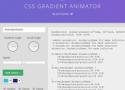
A CSS generator to create beautiful animated gradients for use on your website.
In the Gutenberg Tutorial - How to add a animated gradient colour background section to wordpress Jamie Marsland explains how to use it in WordPress

5 tips to make your WordPress Gutenberg designs less boxy.
- Add beautiful shapes into pages
- Create stylish galleries
- Add seamless Photo cut outs
- Improve readability with snazzy sticky backgrounds
- Mirror text with shape design

Jamie Marsland gives here a hint about adding background image to columns, with this CSS code.
But actually he then shows an even smarter way in his YouTube instruction where he first tells about this trick but when he comes to Putting it all together do it in a smarter way.
As he demonstrates it's possible to achieve the same with the Cover-block. Of course if you need to repeat the same background several times, the CSS-class solution can be more handy.
In his Create Pro WordPress Page Layouts in Just 10 Minutes, Jamie Marsland gives a hint how you can reverse order of columns on mobile.
The link here is the code - explanation to his youtube video.
-ckn- : Jamies solution works by reversing the order. What if you want to have the middle column to be the first ?
I asked ChatGPT - and found a solution, that I will write about, when I find time.
How to build a WordPress Gutenberg Full Site Editing Starter Theme in just 10 minutes with no coding
How to Build your own WordPress Gutenberg Full Site Editor (FSE) Starter Theme in 10 minutes with no coding.
The Theme we build won't have any in-built styles but it will have all the full site editing parts.
Jamie Marsland it tutoring on using Gutenberg and FSE with focus on webshops (Woocommerce) - but gives som good hints and tricks.
On Pootlepress he writes:
Welcome to my Gutenberg Block Editor learning library. Here you'll find my growing collection of free Gutenberg tutorials.